Tricking Notepad
Here's a really funny way to break Notepad.
This actually works. It will not crash your computer, it just breaks Notepad in that it causes it to display very oddly. No permnent damage comes of the following steps.
1. Open up Notepad (not Wordpad, not Word or any other word processor)
2. Type in this sentence exactly (without quotes): "this app can break"
3. Save the file to your hard drive.
4. Close Notepad
5. Open the saved file by double clicking it.
Instead of seeing your sentence, you should see a series of squares. For whatever reason, Notepad can't figure out what to do with that series of characters and breaks
Explanation: In notepad, any other 4-3-3-5 letter word combo will have the same results.
It is all to do with a limitation in Windows. Text files containing Unicode UTF-16-encoded Unicode are supposed to start with a "Byte-Order Mark" (BOM), which is a two-byte flag that tells a reader how the following UTF-16 data is encoded.
The reason this happens:
1) You are saving to 8-bit Extended ASCII (Look at the Save As / Encoding format)
2) You are reading from 16-bit UNICODE (You guessed it, look at the Save As / Encoding format)
This is why the 18 8-bit characters are being displayed as 9 (obviously not supported by your codepage) 16-bit UNICODE
~
Showing posts with label Errors. Show all posts
Showing posts with label Errors. Show all posts
Saturday, March 12, 2011

Thursday, February 25, 2010
"Registry editing has been disabled by your administrator" Error
Error "Registry editing has been disabled by your administrator" when you open the Registry Editor in Windows Vista
When you attempt to start the Registry Editor (regedit.exe) in your Windows Vista system, you may receive the following message:
Registry editing has been disabled by your administrator
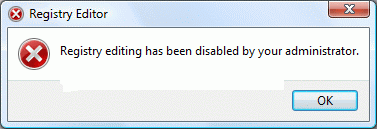
If the above error message is shown in a standalone system, then it may be a result of Malware infection. It is also possible that the DisableRegistryTools policy had been enabled by a third-party tweak program which you may be using. It's highly advisable to follow up with a complete system checkup for Virus and Malware, especially when you're unsure about the cause.
Note: If your system is connected to a domain, your network administrator may have enabled the DisableRegistryTools Policy setting. In that case, you'll need to contact the network administrator to relax this restriction, if need be.
Method 1 - Using Group Policy Editor
If you are using an edition of Windows Vista (Windows Vista Business, Enterprise and Ultimate editions) which includes the Group Policy Editor, follow these steps:
Click Start, type gpedit.msc in the Search box, and press ENTER
Go to the following branch:
User Configuration | Administrative Templates | System
Double-click Prevent access to registry editing tools
Set it as Not Configured
Important: If it's already set to Not Configured, set it to Enabled and click Apply. Then repeat the steps and revert the setting back to Not Configured. This removes the registry based policy if set already.
Method 2
This method should work in all editions of Windows Vista.
Copy the below code & paste in Notepad. Save the file on Desktop & name it reg_enable.vbs.
Open an elevated command prompt. To do this, click Start, click
All Programs, click Accessories, right-click Command Prompt, and then click Run as administrator. If you are prompted for an administrator password or for a confirmation, type the password, or click Allow.
Switch to your Desktop directory by typing the following command, and then pressing ENTER:
Then, type the following command and press ENTER
Type EXIT to close the Command Prompt window.
If everything worked fine, the DisableRegistryTools policy should have been removed by now. See if you're able to launch Regedit.exe now
~
When you attempt to start the Registry Editor (regedit.exe) in your Windows Vista system, you may receive the following message:
Registry editing has been disabled by your administrator

If the above error message is shown in a standalone system, then it may be a result of Malware infection. It is also possible that the DisableRegistryTools policy had been enabled by a third-party tweak program which you may be using. It's highly advisable to follow up with a complete system checkup for Virus and Malware, especially when you're unsure about the cause.
Note: If your system is connected to a domain, your network administrator may have enabled the DisableRegistryTools Policy setting. In that case, you'll need to contact the network administrator to relax this restriction, if need be.
Method 1 - Using Group Policy Editor
If you are using an edition of Windows Vista (Windows Vista Business, Enterprise and Ultimate editions) which includes the Group Policy Editor, follow these steps:
Click Start, type gpedit.msc in the Search box, and press ENTER
Go to the following branch:
User Configuration | Administrative Templates | System
Double-click Prevent access to registry editing tools
Set it as Not Configured
Important: If it's already set to Not Configured, set it to Enabled and click Apply. Then repeat the steps and revert the setting back to Not Configured. This removes the registry based policy if set already.
Method 2
This method should work in all editions of Windows Vista.
Copy the below code & paste in Notepad. Save the file on Desktop & name it reg_enable.vbs.
'Copyright © 2010 Cyber KGB. All rights reserved. ''Description: Resets the "Prevent access to registry editing tools" ' Policy in Windows Vista. If UAC is enabled, this script needs to ' be run from an elevated Command Prompt. 'Compatibility: This script was tested under Windows Vista only. Option Explicit Dim WshShell, strUserName, strDomain, strSID Dim objWMIService, colItems, objItem, arrName, objAccount Set WshShell = WScript.CreateObject("WScript.Shell") Set objWMIService = GetObject("winmgmts:\\.\root\cimv2") Set colItems = objWMIService.ExecQuery("Select * From Win32_ComputerSystem") For Each objItem in colItems arrName = Split(objItem.UserName, "\") strDomain = arrName(0) strUserName = arrName(1) Next Set objAccount = objWMIService.Get _ ("Win32_UserAccount.Name='" & strUserName & "',Domain='" & strDomain & "'") strSID=objAccount.SID If trim(strSID) <> "" then WshShell.RegDelete ("HKEY_USERS\" & strSID & "\Software\Microsoft\Windows\CurrentVersion\Policies\System\DisableRegistryTools") Msgbox "Completed!" End if |
Open an elevated command prompt. To do this, click Start, click
All Programs, click Accessories, right-click Command Prompt, and then click Run as administrator. If you are prompted for an administrator password or for a confirmation, type the password, or click Allow.
Switch to your Desktop directory by typing the following command, and then pressing ENTER:
cd /d %userprofile%\desktop |
Then, type the following command and press ENTER
wscript.exe reg_enable.vbs |
Type EXIT to close the Command Prompt window.
If everything worked fine, the DisableRegistryTools policy should have been removed by now. See if you're able to launch Regedit.exe now
Note: If your system is connected to a domain, your network administrator may have enabled the DisableRegistryTools Policy setting. In that case, you'll need to contact the network administrator to relax this restriction, if need be.
~
"Access is denied" - Log off Error
Error "Access is denied" when you try to log off an user account using Task Manager Users tab in Windows Vista
When you use the Task Manager Users tab to log off an user account in Windows Vista, the following error may appear:
User {username} (SessionId=2) could not be logged off. Access is denied.

This happens if Task Manager is not running under administrative privileges. To log off an user account, Task Manager must be run with administrative privileges. Follow one of these methods:
Method 1
Open Task Manager (taskmgr.exe) and click the Processes tab
Click Show processes from all users
When you are prompted for an administrator password or confirmation, type the password or provide confirmation.
Task Manager now runs with administrative privileges.
Switch to the Users tab and log off an user account.
Method 2
Click Start, click All Programs, click Accessories, right-click Command Prompt, and then click Run as administrator.
If you are prompted for an administrator password or for confirmation, type your password, or click Continue.
At the command prompt, type taskmgr.exe, and then press ENTER.
Task Manager starts with administrative privileges.
Switch to the Users tab and log off an user account.
~
When you use the Task Manager Users tab to log off an user account in Windows Vista, the following error may appear:
User {username} (SessionId=2) could not be logged off. Access is denied.

This happens if Task Manager is not running under administrative privileges. To log off an user account, Task Manager must be run with administrative privileges. Follow one of these methods:
Method 1
Open Task Manager (taskmgr.exe) and click the Processes tab
Click Show processes from all users
When you are prompted for an administrator password or confirmation, type the password or provide confirmation.
Task Manager now runs with administrative privileges.
Switch to the Users tab and log off an user account.
Method 2
Click Start, click All Programs, click Accessories, right-click Command Prompt, and then click Run as administrator.
If you are prompted for an administrator password or for confirmation, type your password, or click Continue.
At the command prompt, type taskmgr.exe, and then press ENTER.
Task Manager starts with administrative privileges.
Switch to the Users tab and log off an user account.
~
Wednesday, February 24, 2010
"This language is no longer available for spell checking" Error
Error "This language is no longer available for spell checking" when using the Spell Checker in Windows Mail
When you use the Spell check feature when composing a new mail message in Windows Mail, the following error message may be displayed:
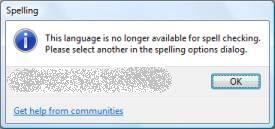
This happens if the default language is not set in the spell checker options. Follow these steps to resolve the problem:
1. Start Windows Mail
2. From the main screen in Windows Mail, click the Tools menu and choose Options.
3. Click the Spelling tab From the Language drop-down, select English even though it's already listed as the default selection, and click Apply.
4. Click OK
~
When you use the Spell check feature when composing a new mail message in Windows Mail, the following error message may be displayed:

This happens if the default language is not set in the spell checker options. Follow these steps to resolve the problem:
1. Start Windows Mail
2. From the main screen in Windows Mail, click the Tools menu and choose Options.
Note: In step 2, make sure that you select the Tools menu from the main window, not the New Mail message window.
3. Click the Spelling tab From the Language drop-down, select English even though it's already listed as the default selection, and click Apply.
4. Click OK
~
Error 0x80070032 when creating a System Restore point in Windows Vista
Error 0x80070032 when creating a System Restore point in Windows Vista
When you try to create a System Restore point in Windows Vista, the following error may occur:

This happens if the Windows Event Log and the Task Scheduler services are disabled. Follow these steps to fix the problem.
1. Click Start, Services.msc. Press {ENTER}
2. Double-click Windows Event Log
3. In the Start type list box, ensure that Automatic is selected
4. Click Start to start the service, if it's not already running
5. Close the Services console
6. Reboot.
It should work fine
If the problem still persists, check the status of the Windows Event Log and Task Scheduler services. If the Task Scheduler service is in a disabled state, then paste code below in a notepad & save the file as schedule.reg.
Save the file to the Desktop, and double-click the file to merge the contents with the registry. Click Yes when asked for confirmation.
Restart Windows.
When you try to create a System Restore point in Windows Vista, the following error may occur:

This happens if the Windows Event Log and the Task Scheduler services are disabled. Follow these steps to fix the problem.
1. Click Start, Services.msc. Press {ENTER}
2. Double-click Windows Event Log
3. In the Start type list box, ensure that Automatic is selected
4. Click Start to start the service, if it's not already running
5. Close the Services console
6. Reboot.
It should work fine
If the problem still persists, check the status of the Windows Event Log and Task Scheduler services. If the Task Scheduler service is in a disabled state, then paste code below in a notepad & save the file as schedule.reg.
Windows Registry Editor Version 5.00 [HKEY_LOCAL_MACHINE\SYSTEM\CurrentControlSet\Services\Schedule] "AtTaskMaxHours"=dword:00000048 "DisplayName"="@%SystemRoot%\\system32\\schedsvc.dll,-100" "Group"="SchedulerGroup" "ImagePath"=hex(2):25,00,73,00,79,00,73,00,74,00,65,00,6d,00,72,00,6f,00,6f,00,\ 74,00,25,00,5c,00,73,00,79,00,73,00,74,00,65,00,6d,00,33,00,32,00,5c,00,73,\ 00,76,00,63,00,68,00,6f,00,73,00,74,00,2e,00,65,00,78,00,65,00,20,00,2d,00,\ 6b,00,20,00,6e,00,65,00,74,00,73,00,76,00,63,00,73,00,00,00 "Description"="@%SystemRoot%\\system32\\schedsvc.dll,-101" "ObjectName"="LocalSystem" "ErrorControl"=dword:00000001 "Start"=dword:00000002 "Type"=dword:00000020 "DependOnService"=hex(7):52,00,50,00,43,00,53,00,53,00,00,00,45,00,76,00,65,00,\ 6e,00,74,00,4c,00,6f,00,67,00,00,00,00,00 "ServiceSidType"=dword:00000001 "RequiredPrivileges"=hex(7):53,00,65,00,49,00,6e,00,63,00,72,00,65,00,61,00,73,\ 00,65,00,51,00,75,00,6f,00,74,00,61,00,50,00,72,00,69,00,76,00,69,00,6c,00,\ 65,00,67,00,65,00,00,00,53,00,65,00,43,00,68,00,61,00,6e,00,67,00,65,00,4e,\ 00,6f,00,74,00,69,00,66,00,79,00,50,00,72,00,69,00,76,00,69,00,6c,00,65,00,\ 67,00,65,00,00,00,53,00,65,00,41,00,75,00,64,00,69,00,74,00,50,00,72,00,69,\ 00,76,00,69,00,6c,00,65,00,67,00,65,00,00,00,53,00,65,00,49,00,6d,00,70,00,\ 65,00,72,00,73,00,6f,00,6e,00,61,00,74,00,65,00,50,00,72,00,69,00,76,00,69,\ 00,6c,00,65,00,67,00,65,00,00,00,53,00,65,00,41,00,73,00,73,00,69,00,67,00,\ 6e,00,50,00,72,00,69,00,6d,00,61,00,72,00,79,00,54,00,6f,00,6b,00,65,00,6e,\ 00,50,00,72,00,69,00,76,00,69,00,6c,00,65,00,67,00,65,00,00,00,53,00,65,00,\ 54,00,63,00,62,00,50,00,72,00,69,00,76,00,69,00,6c,00,65,00,67,00,65,00,00,\ 00,53,00,65,00,52,00,65,00,73,00,74,00,6f,00,72,00,65,00,50,00,72,00,69,00,\ 76,00,69,00,6c,00,65,00,67,00,65,00,00,00,00,00 "FailureActions"=hex:80,51,01,00,00,00,00,00,00,00,00,00,03,00,00,00,14,00,00,\ 00,01,00,00,00,60,ea,00,00,01,00,00,00,60,ea,00,00,00,00,00,00,00,00,00,00 [HKEY_LOCAL_MACHINE\SYSTEM\CurrentControlSet\Services\Schedule\Parameters] "ServiceDll"=hex(2):25,00,73,00,79,00,73,00,74,00,65,00,6d,00,72,00,6f,00,6f,\ 00,74,00,25,00,5c,00,73,00,79,00,73,00,74,00,65,00,6d,00,33,00,32,00,5c,00,\ 73,00,63,00,68,00,65,00,64,00,73,00,76,00,63,00,2e,00,64,00,6c,00,6c,00,00,\ 00 "ServiceDllUnloadOnStop"=dword:00000001 "ServiceMain"="ServiceMain" [HKEY_LOCAL_MACHINE\SYSTEM\CurrentControlSet\Services\Schedule\Enum] "0"="Root\\LEGACY_SCHEDULE\\0000" "Count"=dword:00000001 "NextInstance"=dword:00000001 ;CyberKGB |
Save the file to the Desktop, and double-click the file to merge the contents with the registry. Click Yes when asked for confirmation.
Restart Windows.
Friday, December 18, 2009
[W] "Open Containing Folder" Error
"Open Containing Folder" in Search for Files and Folders does not work
When you perform a file search, and then click the Open Containing Folder in the context menu of the Search Results window, instead of opening the parent folder of the selected file, the Open With dialog may pop up, asking you to choose a program.
To resolve the problem, use these steps:
Navigate to HKEY_CLASSES_ROOT\Directory\shell
In the right-pane, double-click the (default) entry
Type the word none and press Enter
Close Regedit.exe
Reboot
~
When you perform a file search, and then click the Open Containing Folder in the context menu of the Search Results window, instead of opening the parent folder of the selected file, the Open With dialog may pop up, asking you to choose a program.
To resolve the problem, use these steps:
Navigate to HKEY_CLASSES_ROOT\Directory\shell
In the right-pane, double-click the (default) entry
Type the word none and press Enter
Close Regedit.exe
Reboot
~
Monday, November 9, 2009
[W] Avast Antivirus Installation "Error 3"
Avast Antivirus Installation "Error 3"
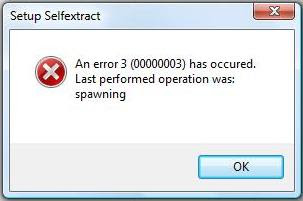
Problem: When you try to install Avast Antivirus, this error occurs:
Setup Selfextract
An error 3 (00000003) has occured.
Last performed operation was:
spawning
Screenshot:
Cause:
This error occurs when you try to install a new Avast installation in a computer that has a corrupted installation of Avast Antivirus.
Solution:
1. Download Avast Uninstall Tool/Utility.
2. Start Windows in Safe Mode
3. Run the uninstall utility (aswclear.exe)
Please note: If you installed Avast antivirus in a different folder than the default, browse for it. Be careful though because the content of any folder you choose will be deleted.
4. Click REMOVE
5. Restart your computer.
6. You can now reinstall avast antivirus.
~
Problem: When you try to install Avast Antivirus, this error occurs:
Setup Selfextract
An error 3 (00000003) has occured.
Last performed operation was:
spawning
Screenshot:

Cause:
This error occurs when you try to install a new Avast installation in a computer that has a corrupted installation of Avast Antivirus.
Solution:
1. Download Avast Uninstall Tool/Utility.
2. Start Windows in Safe Mode
3. Run the uninstall utility (aswclear.exe)
Please note: If you installed Avast antivirus in a different folder than the default, browse for it. Be careful though because the content of any folder you choose will be deleted.
4. Click REMOVE
5. Restart your computer.
6. You can now reinstall avast antivirus.
~
Monday, October 19, 2009
[W] Dual Boot Problem: Windows Vista No Longer Starts After Installing XP
Dual Boot Problem: Windows Vista No Longer Starts After Installing XP
If you want to have a dual boot system with Windows XP and Windows Vista, then you must first install Windows XP and then Windows Vista.
Windows Vista uses a newly designed boot loader and if you install Windows XP after Windows Vista, then it'll overwrite Windows Vista boot loader and you'll not be able to boot into Vista.
If you have installed XP after Vista and you are not able to boot into Vista, then follow these simple instructions and you'll get the Vista boot loader back:
1. Download "VistaBootPRO". Its an excellent software which can reinstall Vista boot loader within a few seconds.
Download @ Vista Boot Pro
For free download mail me.
2. Install it and run the software.
3. Now click on "Bootloader" button as shown in following screenshot:
4. Select "Reinstall the Vista Bootloader" option and click on "Configure It" button.
5. Thats it. It'll install the Vista Boot loader. You can also edit other settings like boot loader timeout, default boot entry, boot entry labels, etc.
You can also repair Vista boot loader using Vista Setup DVD but the above mentioned method is the easiest method and works even you don't have the CD/DVD.

~
If you want to have a dual boot system with Windows XP and Windows Vista, then you must first install Windows XP and then Windows Vista.
Windows Vista uses a newly designed boot loader and if you install Windows XP after Windows Vista, then it'll overwrite Windows Vista boot loader and you'll not be able to boot into Vista.
If you have installed XP after Vista and you are not able to boot into Vista, then follow these simple instructions and you'll get the Vista boot loader back:
1. Download "VistaBootPRO". Its an excellent software which can reinstall Vista boot loader within a few seconds.
Download @ Vista Boot Pro
For free download mail me.
2. Install it and run the software.
3. Now click on "Bootloader" button as shown in following screenshot:
4. Select "Reinstall the Vista Bootloader" option and click on "Configure It" button.
5. Thats it. It'll install the Vista Boot loader. You can also edit other settings like boot loader timeout, default boot entry, boot entry labels, etc.
You can also repair Vista boot loader using Vista Setup DVD but the above mentioned method is the easiest method and works even you don't have the CD/DVD.

~
Subscribe to:
Posts (Atom)


