Firefox Tweaks
Tweak Firefox to Improve the acquire lightning speed.
In the URL bar, type “about:config” and press enter. This will bring up the configuration “menu” where you can change the parameters of Firefox.
Note that these settings are optimized for broadband connections. With as much concurrent requests we’re going to open up with pipelining.
Double Click on the following settings and put in the numbers below - for the true/false booleans - they’ll change when you double click.
browser.tabs.showSingleWindowModePrefs – true
network.http.max-connections – 48
network.http.max-connections-per-server – 16
network.http.max-persistent-connections-per-proxy – 8
network.http.max-persistent-connections-per-server – 4
network.http.pipelining – true
network.http.pipelining.maxrequests – 100
network.http.proxy.pipelining – true
network.http.request.timeout – 300
At last Right-click somewhere on the screen & add a NEW -> Integer. Name it “nglayout.initialpaint.delay” and set its value to “0”. This value is the amount of time the browser waits before it acts on information it receives. Since you’re broadband - it shouldn’t have to wait.
Note: Connot be assured lightning experience but atleast, maximum avilable browsing speed. - Admin
~
Showing posts with label Firefox. Show all posts
Showing posts with label Firefox. Show all posts
Thursday, January 20, 2011

Saturday, November 20, 2010
ISP is Limiting your Download Speed ?
ISP is Limiting your Download Speed ?
Sometimes speed seems to go down while you are watching videos on YouTube or are trying to download files through a torrent client, even though you have a fairly good Internet connection at home and regular websites load pretty quickly in your browser.
Click here for the complete topic.
~
Sometimes speed seems to go down while you are watching videos on YouTube or are trying to download files through a torrent client, even though you have a fairly good Internet connection at home and regular websites load pretty quickly in your browser.
Click here for the complete topic.
~
Friday, December 18, 2009
[W] Find Updates for all Firefox Plug-ins
Find Updates for all your Firefox Plug-ins
This is about updating Firefox plug-ins, not Add-ons.
If you select Tools -> Add-ons from the Firefox menu bar, you’ll get a list of all extensions, themes and plug-ins that are currently installed in your copy of Firefox.
The same add-ons dialog has a “Find Updates” feature to help you figure out if you are running any out-dated extensions but that doesn’t work with your plug-ins. How do you then find out that you are running the latest versions of all plug-ins?
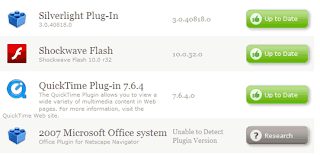
It’s simple now. You can open the Firefox browser and visit the Plugins Check page hosted on mozilla.org. This will create a list of all plug-ins that are installed on your system and will match that data with its own list to determine if you are running an older version that has been marked out-of-date.
In case this online check fails for a particular plugin, you can click the “Research” button to perform a search on Google using the plug-in name as the search query. This is not always accurate but you’ll at least reach the vendor’s website that is officially hosting the plug-in.
It makes sense to visit the plug-ins checker page occasionally because older plug-ins not just make your browser insecure but they also make it more unstable. David Tenser of Mozilla says 30% of the reported crashes are caused by old plugins.
Download the latest version of Firefox here.
~
This is about updating Firefox plug-ins, not Add-ons.
If you select Tools -> Add-ons from the Firefox menu bar, you’ll get a list of all extensions, themes and plug-ins that are currently installed in your copy of Firefox.
The same add-ons dialog has a “Find Updates” feature to help you figure out if you are running any out-dated extensions but that doesn’t work with your plug-ins. How do you then find out that you are running the latest versions of all plug-ins?

It’s simple now. You can open the Firefox browser and visit the Plugins Check page hosted on mozilla.org. This will create a list of all plug-ins that are installed on your system and will match that data with its own list to determine if you are running an older version that has been marked out-of-date.
In case this online check fails for a particular plugin, you can click the “Research” button to perform a search on Google using the plug-in name as the search query. This is not always accurate but you’ll at least reach the vendor’s website that is officially hosting the plug-in.
It makes sense to visit the plug-ins checker page occasionally because older plug-ins not just make your browser insecure but they also make it more unstable. David Tenser of Mozilla says 30% of the reported crashes are caused by old plugins.
Download the latest version of Firefox here.
~
Saturday, December 12, 2009
Type Web Addresses Quickly
The Best Keyboard Shortcut in Firefox – Type Web Addresses Quickly
If you haven’t upgrade to Firefox 3 yet, please do so. The new version is far more responsive and stable that its predecessors.
Another reason for loving Firefox 3 is the way it auto-completes web URLs – very intelligent and something you’ll miss in IE. Update: Firefox 2 users share that this works in the previous version as well.
To get started, press Alt+D or Ctrl+L to move the cursor to your Firefox browser address bar and then try some of these combinations:
To open Google Maps website, type "google/maps" in the Firefox address bar and press Ctrl+Enter.
Firefox will automatically surround the word(s) that are before the first slash with www. and .com. IE 7 and previous version of Firefox can’t do this.
And this URL auto-complete works even if you have several subdirectories in the URL. For instance, your Google Apps sign-in page will open correctly if you type "google/a/mysite.com" and press Ctrl+Enter.
If you want to open a .org site, you need to use Ctrl+Shift+Enter. Typing yahoo/forums followed by Ctrl+Shift+Enter would therefore open our support website at www.yahoo.org/forums.
And for .net websites, the shortcut key is Shift+Enter. So you can view the most popular PowerPoint presentations on Slideshare by typing slideshare/popular followed by Shift+Enter.
http://www.youtube.com/watch?v=-ZmFs0ws9CU&feature=player_embedded
For Geeks: If you like Firefox to add a different suffix other than .com, open your Firefox settings page at about:config and change the value of key browser.fixup.alternate.suffix to something else like .org, .net, etc.
Download the latest version of Firefox here.
~
If you haven’t upgrade to Firefox 3 yet, please do so. The new version is far more responsive and stable that its predecessors.
Another reason for loving Firefox 3 is the way it auto-completes web URLs – very intelligent and something you’ll miss in IE. Update: Firefox 2 users share that this works in the previous version as well.
To get started, press Alt+D or Ctrl+L to move the cursor to your Firefox browser address bar and then try some of these combinations:
To open Google Maps website, type "google/maps" in the Firefox address bar and press Ctrl+Enter.
Firefox will automatically surround the word(s) that are before the first slash with www. and .com. IE 7 and previous version of Firefox can’t do this.
And this URL auto-complete works even if you have several subdirectories in the URL. For instance, your Google Apps sign-in page will open correctly if you type "google/a/mysite.com" and press Ctrl+Enter.
If you want to open a .org site, you need to use Ctrl+Shift+Enter. Typing yahoo/forums followed by Ctrl+Shift+Enter would therefore open our support website at www.yahoo.org/forums.
And for .net websites, the shortcut key is Shift+Enter. So you can view the most popular PowerPoint presentations on Slideshare by typing slideshare/popular followed by Shift+Enter.
http://www.youtube.com/watch?v=-ZmFs0ws9CU&feature=player_embedded
For Geeks: If you like Firefox to add a different suffix other than .com, open your Firefox settings page at about:config and change the value of key browser.fixup.alternate.suffix to something else like .org, .net, etc.
Download the latest version of Firefox here.
~
Monday, December 7, 2009
Login with multiple Ids
Login with multiple Ids at the same time in Orkut , Gmail , Yahoo !.
Step 1:
Create a new Environment variable.
variable name: moz_no_remote
variable value: 1
Click Ok to close all windows.
step 2:
open Firefox icon's properties(from desktop & quick launch).
add extension -p to command line
(Ex: "c:\program files\mozillafirefox\firefox.exe" -p).
While starting Firefox u have to create two separate profiles of Firefox so that u can login to 2 accounts of any ( Orkut, Yahoo, Rediff or anything else).......
For three logins create three profiles of firefox.........
~
Step 1:
Create a new Environment variable.
variable name: moz_no_remote
variable value: 1
Click Ok to close all windows.
step 2:
open Firefox icon's properties(from desktop & quick launch).
add extension -p to command line
(Ex: "c:\program files\mozillafirefox\firefox.exe" -p).
While starting Firefox u have to create two separate profiles of Firefox so that u can login to 2 accounts of any ( Orkut, Yahoo, Rediff or anything else).......
For three logins create three profiles of firefox.........
~
Wednesday, December 2, 2009
[W] Save All Open Websites in Firefox
Save All Open Websites in Firefox
Option 1. Press Ctrl+Shift+D or go to Bookmarks and select "Bookmark all Tabs". This will save all the open tabs into one folder and you can resume surfing the next day by select "Open All in Tabs" from the bookmark folder.
Bonus Tip: Name this folder something like "Feb25" or "022508" so it becomes easy for you to guess the date from the folder name itself.

Option 2. Send Tab URLs – This extension helps you send URLs of all open tabs to any other email address tabs using your default email program – it could be Gmail, Microsoft Outlook or anything else. Very handy if you are working from home and need to access the same websites from office the next day.
If you don’t want email, use Tab URL Copier to copy URLs of all open tabs to the clipboard and paste them inside any note taking software like Google Notebook.

Option 3. Google Browser Sync – If you have a Google Account and work across computers, this Firefox add-in from Google is a perfect way to save your Firefox tabs and open windows. Unfortunately, Google Browser Sync is not supported on Firefox 3.

Option 4. Session Manager – This is probably the most popular solution for save your browser session in Firefox. It will even restore your windows and tabs incase your browser crashes.
Firefox, even without any extensions, will prompt your save the tabs if you decide to quit the browser when multiple tabs are open. This sounds like a good idea but if you are sharing the computer with other family members, you run the risk of losing work if someone else logs in the next day before you do.
Download the latest version of FireFox here.
~
Option 1. Press Ctrl+Shift+D or go to Bookmarks and select "Bookmark all Tabs". This will save all the open tabs into one folder and you can resume surfing the next day by select "Open All in Tabs" from the bookmark folder.
Bonus Tip: Name this folder something like "Feb25" or "022508" so it becomes easy for you to guess the date from the folder name itself.

Option 2. Send Tab URLs – This extension helps you send URLs of all open tabs to any other email address tabs using your default email program – it could be Gmail, Microsoft Outlook or anything else. Very handy if you are working from home and need to access the same websites from office the next day.
If you don’t want email, use Tab URL Copier to copy URLs of all open tabs to the clipboard and paste them inside any note taking software like Google Notebook.

Option 3. Google Browser Sync – If you have a Google Account and work across computers, this Firefox add-in from Google is a perfect way to save your Firefox tabs and open windows. Unfortunately, Google Browser Sync is not supported on Firefox 3.

Option 4. Session Manager – This is probably the most popular solution for save your browser session in Firefox. It will even restore your windows and tabs incase your browser crashes.
Firefox, even without any extensions, will prompt your save the tabs if you decide to quit the browser when multiple tabs are open. This sounds like a good idea but if you are sharing the computer with other family members, you run the risk of losing work if someone else logs in the next day before you do.
Download the latest version of FireFox here.
~
Hide ur Browsing Stuff
Close All Websites in Firefox Before Someone Approaches U.
Panic is like the perfect fool key for Firefox. It will not just prevent you from getting into an embarrassing situation, but others may even get (False) Impression that u r browsing some other site.

You press a keyboard shortcut and all website tabs open inside Firefox will close automatically.
To give others an impression, that you weren’t wasting time, you can configure Panic to replace all open tabs with a single work-related website like your company’s intranet homepage or any other web page.
Get Panic [Firefox add-on] – Please note that Panic will close all open websites not just hide them from view by minimizing Firefox.
Download the latest version of FireFox here.
~
Panic is like the perfect fool key for Firefox. It will not just prevent you from getting into an embarrassing situation, but others may even get (False) Impression that u r browsing some other site.

You press a keyboard shortcut and all website tabs open inside Firefox will close automatically.
To give others an impression, that you weren’t wasting time, you can configure Panic to replace all open tabs with a single work-related website like your company’s intranet homepage or any other web page.
Get Panic [Firefox add-on] – Please note that Panic will close all open websites not just hide them from view by minimizing Firefox.
Download the latest version of FireFox here.
~
[W] Keyboard Shortcuts to your Favorite Websites
Assign Keyboard Shortcuts to your Favorite Websites
We all have our own list of favorite websites that we like to visit several times a day. Now the point is how do you quickly access these frequently visited pages without having to type the URLs in the address bar ?
One of the best options in Firefox is keyword bookmarking – you basically save the website to your Firefox bookmarks and then assign a (memorable) keyword to that bookmark.

For instance, I have assigned the keyword "w" to the Wikipedia homepage bookmark as in screenshot above. The next time I want to visit the Wikipedia site, I simply go the Firefox address bar, type w and hit Enter.
That’s the default method of doing things but if you are too bad at memorizing shortcuts and need something more simple , check out Site Launcher.

You hit a shortcut key and there you have a list of all your favorite pages presented in a clean overlay window – press another key and the associated website will open in a new Firefox tab. The keyboard shortcuts works even while you are browsing the web in full-screen mode.
This visual appearance of Site Launcher overlay window is actually very similar to the help window of Gmail or Google Reader (see screenshot below) that’s invoked when your hit the Shift + ? keyboard shortcut and disappears on pressing the Escape key.

You can add as many number of sites to the Site Launcher menu as you want and it will auto-download the corresponding favicon so you can recognize sites more quickly.
And while you can manually add any web page to Site Launcher using the menu, the shortcut Ctrl + Shift + S will quickly add the current web page to the Site Launcher menu in one click.
Download the latest version of Firefox here.
~
We all have our own list of favorite websites that we like to visit several times a day. Now the point is how do you quickly access these frequently visited pages without having to type the URLs in the address bar ?
One of the best options in Firefox is keyword bookmarking – you basically save the website to your Firefox bookmarks and then assign a (memorable) keyword to that bookmark.

For instance, I have assigned the keyword "w" to the Wikipedia homepage bookmark as in screenshot above. The next time I want to visit the Wikipedia site, I simply go the Firefox address bar, type w and hit Enter.
That’s the default method of doing things but if you are too bad at memorizing shortcuts and need something more simple , check out Site Launcher.

You hit a shortcut key and there you have a list of all your favorite pages presented in a clean overlay window – press another key and the associated website will open in a new Firefox tab. The keyboard shortcuts works even while you are browsing the web in full-screen mode.
This visual appearance of Site Launcher overlay window is actually very similar to the help window of Gmail or Google Reader (see screenshot below) that’s invoked when your hit the Shift + ? keyboard shortcut and disappears on pressing the Escape key.

You can add as many number of sites to the Site Launcher menu as you want and it will auto-download the corresponding favicon so you can recognize sites more quickly.
And while you can manually add any web page to Site Launcher using the menu, the shortcut Ctrl + Shift + S will quickly add the current web page to the Site Launcher menu in one click.
Download the latest version of Firefox here.
~
Tuesday, December 1, 2009
Website Not Loading in Firefox? Try Again, Automatically
Website Not Loading in Firefox? Try Again, Automatically
When browsing web pages in Firefox, it often happens that the site you’re trying to access doesn’t load in one go.

May be the web server is down momentarily or there was too much load or maybe your own Internet connection dropped. Whatever be the case, such issues are often temporary and get resolved as soon you press F5 to reload the same web page.
If you work with too many browser tabs, a better alternative to F5 could be Try Again. This is a Firefox add-in that will continuously try connecting to web pages that didn’t open successfully in the first instance.

TryAgain v 3.2 – Thinks of this as robot pressing F5 every 5 or 10 seconds.
And if the web server fails to respond even after several tries, you can always see a copy through Google Cache or the WayBack Archive.
Download the latest version of FireFox here.
~
When browsing web pages in Firefox, it often happens that the site you’re trying to access doesn’t load in one go.

May be the web server is down momentarily or there was too much load or maybe your own Internet connection dropped. Whatever be the case, such issues are often temporary and get resolved as soon you press F5 to reload the same web page.
If you work with too many browser tabs, a better alternative to F5 could be Try Again. This is a Firefox add-in that will continuously try connecting to web pages that didn’t open successfully in the first instance.

TryAgain v 3.2 – Thinks of this as robot pressing F5 every 5 or 10 seconds.
And if the web server fails to respond even after several tries, you can always see a copy through Google Cache or the WayBack Archive.
Download the latest version of FireFox here.
~
Sunday, November 8, 2009
Type Web Addresses Quickly
The Best Keyboard Shortcut in Firefox – Type Web Addresses Quickly
If you haven’t upgrade to Firefox 3 yet, please do so. The new version is far more responsive and stable that its predecessors.
Another reason for loving Firefox 3 is the way it auto-completes web URLs – very intelligent and something you’ll miss in IE. Update: Firefox 2 users share that this works in the previous version as well.
To get started, press Alt+D or Ctrl+L to move the cursor to your Firefox browser address bar and then try some of these combinations:
To open Google Maps website, type "google/maps" in the Firefox address bar (no quotes) and press Ctrl+Enter.
Firefox will automatically surround the word(s) that are before the first slash with www. and .com. IE 7 and previous version of Firefox can’t do this.
And this URL auto-complete works even if you have several subdirectories in the URL. For instance, your Google Apps sign-in page will open correctly if you type "google/a/mysite.com" and press Ctrl+Enter.
If you want to open a .org site, you need to use Ctrl+Shift+Enter. Typing yahoo/forums followed by Ctrl+Shift+Enter would therefore open our support website at www.yahoo.org/forums.
And for .net websites, the shortcut key is Shift+Enter. So you can view the most popular PowerPoint presentations on Slideshare by typing slideshare/popular followed by Shift+Enter.
http://www.youtube.com/watch?v=-ZmFs0ws9CU&feature=player_embedded
For Geeks: If you like Firefox to add a different suffix other than .com, open your Firefox settings page at about:config and change the value of key browser.fixup.alternate.suffix to something else like .org, .net, etc.
Download the latest version of Firefox here.
~
If you haven’t upgrade to Firefox 3 yet, please do so. The new version is far more responsive and stable that its predecessors.
Another reason for loving Firefox 3 is the way it auto-completes web URLs – very intelligent and something you’ll miss in IE. Update: Firefox 2 users share that this works in the previous version as well.
To get started, press Alt+D or Ctrl+L to move the cursor to your Firefox browser address bar and then try some of these combinations:
To open Google Maps website, type "google/maps" in the Firefox address bar (no quotes) and press Ctrl+Enter.
Firefox will automatically surround the word(s) that are before the first slash with www. and .com. IE 7 and previous version of Firefox can’t do this.
And this URL auto-complete works even if you have several subdirectories in the URL. For instance, your Google Apps sign-in page will open correctly if you type "google/a/mysite.com" and press Ctrl+Enter.
If you want to open a .org site, you need to use Ctrl+Shift+Enter. Typing yahoo/forums followed by Ctrl+Shift+Enter would therefore open our support website at www.yahoo.org/forums.
And for .net websites, the shortcut key is Shift+Enter. So you can view the most popular PowerPoint presentations on Slideshare by typing slideshare/popular followed by Shift+Enter.
http://www.youtube.com/watch?v=-ZmFs0ws9CU&feature=player_embedded
For Geeks: If you like Firefox to add a different suffix other than .com, open your Firefox settings page at about:config and change the value of key browser.fixup.alternate.suffix to something else like .org, .net, etc.
Download the latest version of Firefox here.
~
Subscribe to:
Posts (Atom)


