Install an Ancient Printer in Vista
Click here for tutorial in detailed steps.
~
Showing posts with label Hardware. Show all posts
Showing posts with label Hardware. Show all posts
Friday, March 12, 2010

Monday, December 7, 2009
[W] Fix Realtek HD Audio error: Error 0xE0000227
Fix Realtek HD Audio error: Error 0xE0000227

Open Device Manager
In the "View" menu manager, select "Devices by connection":
Disable and uninstall by right clicking on "Bus Driver for Microsoft UAA High Definition Audio",
You can now install the drivers normally and without error.
~

Open Device Manager
In the "View" menu manager, select "Devices by connection":
Disable and uninstall by right clicking on "Bus Driver for Microsoft UAA High Definition Audio",
You can now install the drivers normally and without error.
~
[W] Format your Flash drive with NTFS
Format your Flash drive with NTFS file system when there is no option for it
Right-Click on My Computer > Properties
Click on Hardware Tab > Device Manager
Locate your Usb Drive > Right-Click > Properties
Click on Policies Tab > Optimize for performance
Click OK
Close all windows
Now format your Drive; NTFS option will be now available
Note: NTFS file system is very delicate on flash drives. With NTFS you absolutely MUST use "Safely remove" option every time, unless you want to corrupt your data.
~

Right-Click on My Computer > Properties
Click on Hardware Tab > Device Manager
Locate your Usb Drive > Right-Click > Properties
Click on Policies Tab > Optimize for performance
Click OK
Close all windows
Now format your Drive; NTFS option will be now available
Note: NTFS file system is very delicate on flash drives. With NTFS you absolutely MUST use "Safely remove" option every time, unless you want to corrupt your data.
~
Sunday, December 6, 2009
Recover data from infected Pen Drive
Recover data from infected Pen Drive
I am know that nowadays many people have some major issue with viruses which cause various troubles on your computer.Now you would be thinking how can you back up data from a virus infected pen drive. If you insert you pen drive on your computer it may infect your computer also.
I have found a solution for you need to follow few simple steps for that which is as follows:-
1. Open My Computer and Right click on the Removable pen drive.
2. Select Properties and then Tools.
3. Click on Back Up.
4. Now choose the file to back up from your removable pen drive.
5. Finally choose the Destination path where you want to store your back up files.
6. Extract them in other drive.
~
I am know that nowadays many people have some major issue with viruses which cause various troubles on your computer.Now you would be thinking how can you back up data from a virus infected pen drive. If you insert you pen drive on your computer it may infect your computer also.
I have found a solution for you need to follow few simple steps for that which is as follows:-
1. Open My Computer and Right click on the Removable pen drive.
2. Select Properties and then Tools.
3. Click on Back Up.
4. Now choose the file to back up from your removable pen drive.
5. Finally choose the Destination path where you want to store your back up files.
6. Extract them in other drive.
~
[W] Clone ur Computer on a USB Drive
Clone Your Computer on a USB Drive – Why Carry That Heavy Laptop
If you are working across multiple computers that are not connected to each other, you probably use the good old USB drive (or external hard drive) to store and carry your Office documents, Photoshop drawings, personal pictures and other multimedia files.
Perfect. Now imagine a situation where you have all required data on the USB drive but the computer you are currently working on (say in the cyber café or a friend’s place) doesn’t have the necessary software programs that are required to view or edit those files.
That computer neither has Microsoft Office for creating PowerPoint presentations or Excel sheets, nor Photoshop and AutoCAD for you to edit those important CAD drawings. Even the media player is missing so you cannot watch your personal video and music collection that you have been carrying in the pocket.
What if you could carry all your favorite software applications (and their settings), Office files, emails and everything else with you on a portable drive? You just plug-in that drive into the USB port of any computer and start working as if that was your own PC.
Well, your dreams can come true with Mojopac from Ringcube – an absolutely brilliant tool that very-easily clones your existing computing environment onto any USB Drive. And if you have an iPod or a USB based cell phone or Digital Camera, Mojopac will work just fine so you have one less device to carry.
To get started, you connect the USB drive to the main computer (that has the stuff you need most) and install the free Mojopac software. What you then see is a fresh Windows XP environment without any software. Now install all the applications (and even games) that you want to carry around– they are not installed on your computer but on the USB drive.
Once you are done, eject the USB drive and plug into any Windows computer. All those programs and documents can now run off the USB drive. Mojopac will also save your application settings and software preferences as you move around computers.
Mojopac uses the resources of the host computer but runs entirely on the USB drive without modifying anything on the host. Once you eject the USB device out of the friend’s computer, there are no traces left – not even your web browsing history.
~
If you are working across multiple computers that are not connected to each other, you probably use the good old USB drive (or external hard drive) to store and carry your Office documents, Photoshop drawings, personal pictures and other multimedia files.

Perfect. Now imagine a situation where you have all required data on the USB drive but the computer you are currently working on (say in the cyber café or a friend’s place) doesn’t have the necessary software programs that are required to view or edit those files.
That computer neither has Microsoft Office for creating PowerPoint presentations or Excel sheets, nor Photoshop and AutoCAD for you to edit those important CAD drawings. Even the media player is missing so you cannot watch your personal video and music collection that you have been carrying in the pocket.
What if you could carry all your favorite software applications (and their settings), Office files, emails and everything else with you on a portable drive? You just plug-in that drive into the USB port of any computer and start working as if that was your own PC.
Well, your dreams can come true with Mojopac from Ringcube – an absolutely brilliant tool that very-easily clones your existing computing environment onto any USB Drive. And if you have an iPod or a USB based cell phone or Digital Camera, Mojopac will work just fine so you have one less device to carry.
To get started, you connect the USB drive to the main computer (that has the stuff you need most) and install the free Mojopac software. What you then see is a fresh Windows XP environment without any software. Now install all the applications (and even games) that you want to carry around– they are not installed on your computer but on the USB drive.
Once you are done, eject the USB drive and plug into any Windows computer. All those programs and documents can now run off the USB drive. Mojopac will also save your application settings and software preferences as you move around computers.
Mojopac uses the resources of the host computer but runs entirely on the USB drive without modifying anything on the host. Once you eject the USB device out of the friend’s computer, there are no traces left – not even your web browsing history.
~
Saturday, December 5, 2009
[W] Connect Two Computers Without a Router
How to Connect Two Computers Without a Router
Let’s assume you have two computers at home and you want to connect them together so that you can easily share an internet connection between the two machines or transfer photos, music and other files from one computer to another.
Connect Two Computers Directly
There are two options – you can either buy a router or, if you are looking for something more simple and don’t want to spend money on new networking hardware, you can connect the two computers using a commonly-available cable. The latter method doesn’t involve any complicated network settings and you will still be able to share files, internet connection, and even printers between computers.
Things you need :
To set up this basic wired home network, all you need is an inexpensive Ethernet crossover cable and the other requirement is that network cards* (also known as LAN or Ethernet cards) should be installed on each of you computers.
[*] This should not be an issue because network cards are available on most newer machines by default but if you are working with a very old computer, you can either attach an internal LAN card to your computer’s motherboard or go for a USB Network adapter that will turn a USB port into an Ethernet (RJ45) port.
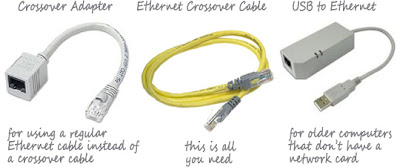
An Ethernet crossover cable looks like a standard Ethernet cable but the internal wiring is a little different. You can purchase crossover cables at from your local computer store. If you have trouble finding them, you can purchase an inexpensive Crossover adapter and that will let you use any standard Ethernet cable as a c=Crossover cable.
Connect Computers with an Ethernet Crossover Cable
Before connecting the two computers with a physical cable, make sure that both machine are using the same Workgroup. Here is step-by-step guide that explains how you can change the Workgroup of your computers.
Changing Workgroup in Windows XP – From the Start menu, right-click “My Computer.” Select Properties in the drop-down menu, and then select the second tab that says “Computer Name” from the System Properties window. Now click the “Change…” button, enter a unique Workgroup name and reboot your computer.
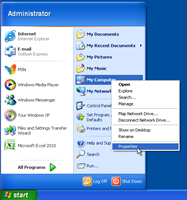
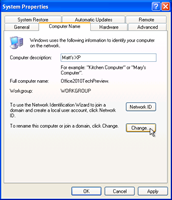
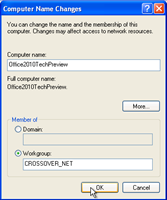
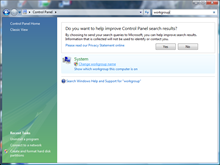
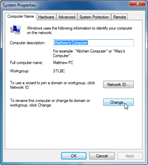
Changing Workgroup in Windows 7 or Vista – Open the Control Panel, type “Workgroup” in the search box, and select the entry that says “Change Workgroup Name.” Click the “Change…” button, enter a Workgroup name and restart the computer. Windows 7 users can skip one step; simply type “Workgroup” in the search box in the start menu, and select the first entry, then proceed as above.
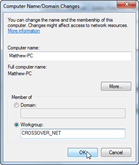
Now that the Workgroups are same for both computers, connect the two computers together using the Ethernet crossover cable. Simply plug-in one end of the crossover cable into the network adapter of Computer A and connect the other end of the cable to the network adapter of Computer B.
Windows will automatically recognize the new network, and you can now easily view files and folder that the other computer has shared. Simply open Networks from the Start Menu (or the Control Panel), and you should see the other computer by its name. You can then browse any shared files on the other computer, and can even utilize shared printers.
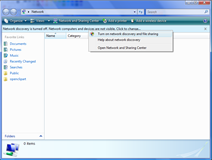
Troubleshooting – If you do not see the other computer under Networks, you probably have a prompt at the top of your Network window saying that Network discovery is turned off (screenshots below). Select “Turn on Network Discovery and File Sharing.” In the next prompt, select “No, make the network I am connected to a private network.” Now you should see the other computer on the home network.
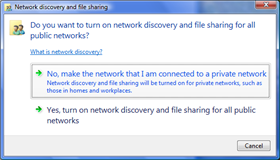
[*] While it is possible to share files between two computers connected with a crossover cable without making them part of the same workgroup, the method will only work if both computers have this network set as a private network, and may still cause problems. It is therefore advisable to have both computers on the same workgroup before sharing files and printers.
Share an Internet Connection Between Two Computers
There are scenarios where you may want to share the same internet connection between two computers. For instance:
Situation A - You have setup a Wi-Fi network at home but your old desktop computer doesn’t have a wireless network card. In that case, you can use the laptop to connect to the internet wirelessly and then share that same connection with the desktop over a crossover Ethernet cable.
Situation B – You have a netbook with a built-in cellular data connection. You can share that connection with any another computer at home through the crossover Ethernet cable.
Situation C – You use a (slow) Wireless USB modem with your laptop computer while your desktop is connected to an ADSL Broadband line and there’s no router at home. For any bandwidth intensive tasks, like when you want to backup photos from your laptop to an online service, you can connect the laptop to the desktop and things will happen much faster.
Steps for sharing an Internet connection :
First, if you only wish to share internet connection and not files, both computers need not belong to the same workgroup. All you need to do is to connect the two computers with the Ethernet crossover cable, and then turn on Internet connection sharing in the computer that already has an Internet connection. The instructions vary for different versions of Windows:
For Windows XP – Select “Network and Internet Connections” from the Control Panel and click “Network Connections.”
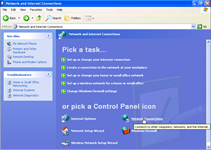
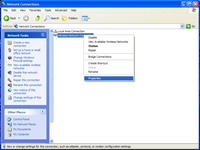
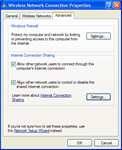
Right-click on the network connection you wish to share (the one connected to the internet), select Properties, click on the “Advanced” tab, and then check the box that says “Allow other network users to connect through this computer’s Internet connection.” Click OK, and the second computer that you have connected to this computer with the Crossover Cable should have internet access now.
For Windows 7 and Vista – Open Control Panel, enter “network connections” in the search box on the top right and select “View Network Connections.”
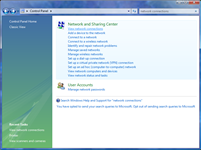
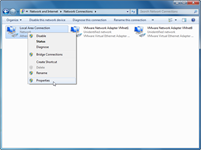
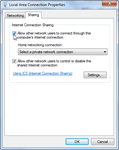
Right-click on the network connection you wish to share (this must be the one connected to the internet) and select Properties. Select the "Sharing" tab and then check the option that says “Allow other network users to connect through this computer’s Internet connection.” Click OK, and the other computer you have connected to this Windows 7 or Vista computer should have internet access now.
~
Let’s assume you have two computers at home and you want to connect them together so that you can easily share an internet connection between the two machines or transfer photos, music and other files from one computer to another.
Connect Two Computers Directly
There are two options – you can either buy a router or, if you are looking for something more simple and don’t want to spend money on new networking hardware, you can connect the two computers using a commonly-available cable. The latter method doesn’t involve any complicated network settings and you will still be able to share files, internet connection, and even printers between computers.
Things you need :
To set up this basic wired home network, all you need is an inexpensive Ethernet crossover cable and the other requirement is that network cards* (also known as LAN or Ethernet cards) should be installed on each of you computers.
[*] This should not be an issue because network cards are available on most newer machines by default but if you are working with a very old computer, you can either attach an internal LAN card to your computer’s motherboard or go for a USB Network adapter that will turn a USB port into an Ethernet (RJ45) port.

An Ethernet crossover cable looks like a standard Ethernet cable but the internal wiring is a little different. You can purchase crossover cables at from your local computer store. If you have trouble finding them, you can purchase an inexpensive Crossover adapter and that will let you use any standard Ethernet cable as a c=Crossover cable.
Connect Computers with an Ethernet Crossover Cable
Before connecting the two computers with a physical cable, make sure that both machine are using the same Workgroup. Here is step-by-step guide that explains how you can change the Workgroup of your computers.
Changing Workgroup in Windows XP – From the Start menu, right-click “My Computer.” Select Properties in the drop-down menu, and then select the second tab that says “Computer Name” from the System Properties window. Now click the “Change…” button, enter a unique Workgroup name and reboot your computer.


Changing Workgroup in Windows 7 or Vista – Open the Control Panel, type “Workgroup” in the search box, and select the entry that says “Change Workgroup Name.” Click the “Change…” button, enter a Workgroup name and restart the computer. Windows 7 users can skip one step; simply type “Workgroup” in the search box in the start menu, and select the first entry, then proceed as above.


Now that the Workgroups are same for both computers, connect the two computers together using the Ethernet crossover cable. Simply plug-in one end of the crossover cable into the network adapter of Computer A and connect the other end of the cable to the network adapter of Computer B.
Windows will automatically recognize the new network, and you can now easily view files and folder that the other computer has shared. Simply open Networks from the Start Menu (or the Control Panel), and you should see the other computer by its name. You can then browse any shared files on the other computer, and can even utilize shared printers.
Troubleshooting – If you do not see the other computer under Networks, you probably have a prompt at the top of your Network window saying that Network discovery is turned off (screenshots below). Select “Turn on Network Discovery and File Sharing.” In the next prompt, select “No, make the network I am connected to a private network.” Now you should see the other computer on the home network.


[*] While it is possible to share files between two computers connected with a crossover cable without making them part of the same workgroup, the method will only work if both computers have this network set as a private network, and may still cause problems. It is therefore advisable to have both computers on the same workgroup before sharing files and printers.
Share an Internet Connection Between Two Computers
There are scenarios where you may want to share the same internet connection between two computers. For instance:
Situation A - You have setup a Wi-Fi network at home but your old desktop computer doesn’t have a wireless network card. In that case, you can use the laptop to connect to the internet wirelessly and then share that same connection with the desktop over a crossover Ethernet cable.
Situation B – You have a netbook with a built-in cellular data connection. You can share that connection with any another computer at home through the crossover Ethernet cable.
Situation C – You use a (slow) Wireless USB modem with your laptop computer while your desktop is connected to an ADSL Broadband line and there’s no router at home. For any bandwidth intensive tasks, like when you want to backup photos from your laptop to an online service, you can connect the laptop to the desktop and things will happen much faster.
Steps for sharing an Internet connection :
First, if you only wish to share internet connection and not files, both computers need not belong to the same workgroup. All you need to do is to connect the two computers with the Ethernet crossover cable, and then turn on Internet connection sharing in the computer that already has an Internet connection. The instructions vary for different versions of Windows:
For Windows XP – Select “Network and Internet Connections” from the Control Panel and click “Network Connections.”


Right-click on the network connection you wish to share (the one connected to the internet), select Properties, click on the “Advanced” tab, and then check the box that says “Allow other network users to connect through this computer’s Internet connection.” Click OK, and the second computer that you have connected to this computer with the Crossover Cable should have internet access now.
For Windows 7 and Vista – Open Control Panel, enter “network connections” in the search box on the top right and select “View Network Connections.”


Right-click on the network connection you wish to share (this must be the one connected to the internet) and select Properties. Select the "Sharing" tab and then check the option that says “Allow other network users to connect through this computer’s Internet connection.” Click OK, and the other computer you have connected to this Windows 7 or Vista computer should have internet access now.
~
[W] Connect a Laptop Computer To Your Television Screen
Connect a Laptop Computer To Your Television Screen
While it is possible to display the contents of your computer screen on the TV, you may not be very happy with the overall picture quality and the text is not very readable.

If that is no concern, here’s how to connect your computer to a Television set (we used an HP Tablet Vista computer and a Sony Bravia HDTV for this example)
1. First you need a video cable for making the physically connection.
Most computers have an S-Video port that can be connected to the S-Video input of your TV screen using a very cheap S-Video cable (it’s round with 4 or 7 pins).

For better picture quality, you should connect the computer to the TV using standard VGA ports or via the DVI to HDMI cable provided your TV supports these ports.
2. Open the "Display Settings" in your Vista computer and activate output to the TV screen. You can either mirror content of your computer on the TV or extend the display just like a dual monitor screen.

3. Pick up your TV remote and switch to "External Inputs" from the menu. You will need to change the default "Video 1" to a different selection which may be "HDMI 1" or "Video 2" depending on how you have made the connection.
Important: Make sure you connect the cable to the TV before turning on the computer as sometimes it may fail to recognize external display.
You may also need to change the screen resolution of your TV using the Display settings in your Control Panel else the picture may appear distorted.
~
While it is possible to display the contents of your computer screen on the TV, you may not be very happy with the overall picture quality and the text is not very readable.

If that is no concern, here’s how to connect your computer to a Television set (we used an HP Tablet Vista computer and a Sony Bravia HDTV for this example)
1. First you need a video cable for making the physically connection.
Most computers have an S-Video port that can be connected to the S-Video input of your TV screen using a very cheap S-Video cable (it’s round with 4 or 7 pins).

For better picture quality, you should connect the computer to the TV using standard VGA ports or via the DVI to HDMI cable provided your TV supports these ports.
2. Open the "Display Settings" in your Vista computer and activate output to the TV screen. You can either mirror content of your computer on the TV or extend the display just like a dual monitor screen.

3. Pick up your TV remote and switch to "External Inputs" from the menu. You will need to change the default "Video 1" to a different selection which may be "HDMI 1" or "Video 2" depending on how you have made the connection.
Important: Make sure you connect the cable to the TV before turning on the computer as sometimes it may fail to recognize external display.
You may also need to change the screen resolution of your TV using the Display settings in your Control Panel else the picture may appear distorted.
~
Subscribe to:
Posts (Atom)


