YouTube Video Turned into a Virtual Piano
Hit the play button, wait until the video loads in your browser and then click any of the piano keys inside the YouTube video itself to play some music.
~
Tuesday, January 26, 2010

Websites and Words That Are Blocked in China
Websites and Words That Are Blocked in China
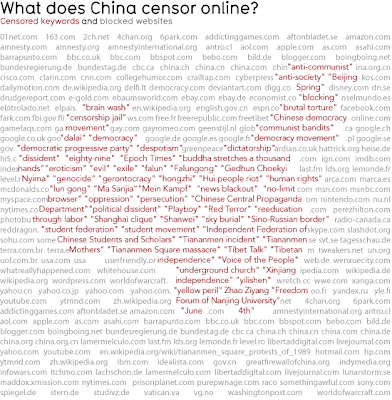
There are generally two kinds of internet censorship in China – they either completely block a website from users or they instruct local search engines to modify search results for certain keywords.
For instance, sites like IMDB and BBC are inaccessible from within China and some of them may not even appear in the search results of local search engines like Baidu or Sohu. The next form of censorship is keyword based. If you search for a censored keyword (say “Human Rights”) in a Chinese search engine, you’ll see few or no results.
~

There are generally two kinds of internet censorship in China – they either completely block a website from users or they instruct local search engines to modify search results for certain keywords.
For instance, sites like IMDB and BBC are inaccessible from within China and some of them may not even appear in the search results of local search engines like Baidu or Sohu. The next form of censorship is keyword based. If you search for a censored keyword (say “Human Rights”) in a Chinese search engine, you’ll see few or no results.
~
Tuesday, January 12, 2010
Setting up Ubuntu Software Centre/Center on Ubuntu
Setting up Ubuntu Software Centre/Center on !Ubuntu
Ubuntu software-centre/center is the successor to various tools used to manage repositories and programs. On Ubuntu this program comes standard, however it is a must-have for other distros aswell should it be for new users. Power-users can more quickly use the Terminal.
1. Open a Terminal Application
Under Kubuntu it's found in Applications>System>Terminal
enter
2. Enter
sudo apt-get install software-store
3. Type your password if requested.
4. It is now under Applications>System>Software Centre/Center
~
Ubuntu software-centre/center is the successor to various tools used to manage repositories and programs. On Ubuntu this program comes standard, however it is a must-have for other distros aswell should it be for new users. Power-users can more quickly use the Terminal.
1. Open a Terminal Application
Under Kubuntu it's found in Applications>System>Terminal
enter
2. Enter
sudo apt-get install software-store
3. Type your password if requested.
4. It is now under Applications>System>Software Centre/Center
~
Shutdown your PC in a single Click
Creating Shutdown Icon or One Click Shutdown:
Create a new shortcut on Desktop.
You should now see a pop-up window instructing you to enter a command line path.
Use this path in "Type Location of the Item"
SHUTDOWN -s -t 01
Click the "Next" button. Name the shortcut and click the "Finish" button. Now whenever you want to shut down, just click on this shortcut and you're done.
~
Create a new shortcut on Desktop.
You should now see a pop-up window instructing you to enter a command line path.
Use this path in "Type Location of the Item"
SHUTDOWN -s -t 01
Click the "Next" button. Name the shortcut and click the "Finish" button. Now whenever you want to shut down, just click on this shortcut and you're done.
~
Migrating bookmarks from XP to FireFox Ubuntu
Migrating bookmarks from XP to FireFox Ubuntu
There are 3 methods to get your bookmarks, if you already have firefox on Windows, if you do not, and if you want to use Xmarks.
If there is no Firefox on XP, then Install Firefox on XP.
Use Firefox to import bookmarks, it might do this on first run.
Via Xmarks
Xmarks is a convenient way to synchronise bookmrks and setting across multiple firefox installations. While very convenient, it will embed itself into some pages such as Google (this can be disabled), and requires an account. Also, if privacy is a concern, I don't recommend Xmarks, as your information will be uploaded to Xmarks servers. There is no cost to use Xmarks.
1. (on XP) from Firefox, install the Xmarks addon
2. Restart firefox, Xmarks will pop up. Follow the prompts to set up Xmarks. Ensure you sync your bookmarks to the server.
3. (on Ubuntu) from Firefox, install the Xmarks addon
4.Restart firefox, Xmarks will pop up. Follow the prompts to set up Xmarks. Ensure you sync your bookmarks FROM the server, and delete the bookmarks on the computer.
~
There are 3 methods to get your bookmarks, if you already have firefox on Windows, if you do not, and if you want to use Xmarks.
If there is no Firefox on XP, then Install Firefox on XP.
Use Firefox to import bookmarks, it might do this on first run.
Via Xmarks
Xmarks is a convenient way to synchronise bookmrks and setting across multiple firefox installations. While very convenient, it will embed itself into some pages such as Google (this can be disabled), and requires an account. Also, if privacy is a concern, I don't recommend Xmarks, as your information will be uploaded to Xmarks servers. There is no cost to use Xmarks.
1. (on XP) from Firefox, install the Xmarks addon
2. Restart firefox, Xmarks will pop up. Follow the prompts to set up Xmarks. Ensure you sync your bookmarks to the server.
3. (on Ubuntu) from Firefox, install the Xmarks addon
4.Restart firefox, Xmarks will pop up. Follow the prompts to set up Xmarks. Ensure you sync your bookmarks FROM the server, and delete the bookmarks on the computer.
~
Monday, January 11, 2010
Wednesday, January 6, 2010
How to get a speed upto 300 kb/s in Utorrent
How to get a speed upto 300 kb/s in Utorrent
1. Go on the piratebay.org (or some other site.)
2. Start downloading the torrent you want.
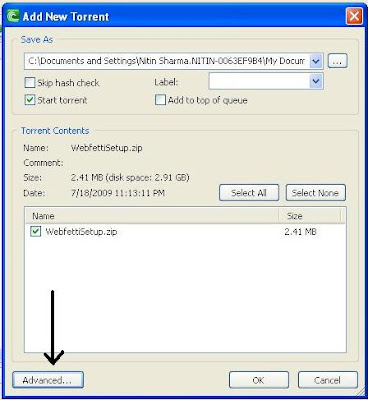
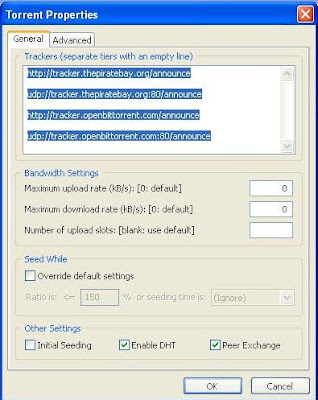
3. Then in utorrent add the tracker list to properties on the torrent. (Tracker list is given at the end of the post.)
4. If you don't know where to edit these tracker list then here are screenshots
Click here for Tracker List
Note: Doesn't work for Many ISP's, which have less Bandwidth.
~
1. Go on the piratebay.org (or some other site.)
2. Start downloading the torrent you want.
3. Then in utorrent add the tracker list to properties on the torrent. (Tracker list is given at the end of the post.)
4. If you don't know where to edit these tracker list then here are screenshots


Click here for Tracker List
Note: Doesn't work for Many ISP's, which have less Bandwidth.
~
Playing Encrypted DVDs
Playing Encrypted DVDs
Canonical, due to legal constraints, cannot actually provide you with the ability to play encrypted DVDs out of the included media. Below assumes you've installed the restricted-extras (if not, when you try to play a movie the program will prompt you to install the extras package anyway)
1. Open a Terminal Application
2. Enter (Under Jaunty):
sudo wget http://www.medibuntu.org/sources.list.d/jaunty.list --output-document=/etc/apt/sources.list.d/medibuntu.list
Enter (Under Karmic):
sudo wget http://www.medibuntu.org/sources.list.d/karmic.list --output-document=/etc/apt/sources.list.d/medibuntu.list
3. Type your password if requested.
4. Continue with the following Commands:
sudo apt-get install medibuntu-keyring
sudo apt-get update
5. If using a 32-bit copy of *buntu:
sudo apt-get install w32codecs libdvdcss2
If using a 64-bit copy of *buntu:
sudo apt-get install w64codecs libdvdcss2
Note: If unsure, I believe installing the 32-bit codecs might still work. Attempt to play a Hollywood DVD, if it fails, remove the 32-bit codecs and install the 64-bit instead.
~
Canonical, due to legal constraints, cannot actually provide you with the ability to play encrypted DVDs out of the included media. Below assumes you've installed the restricted-extras (if not, when you try to play a movie the program will prompt you to install the extras package anyway)
1. Open a Terminal Application
2. Enter (Under Jaunty):
sudo wget http://www.medibuntu.org/sources.list.d/jaunty.list --output-document=/etc/apt/sources.list.d/medibuntu.list
Enter (Under Karmic):
sudo wget http://www.medibuntu.org/sources.list.d/karmic.list --output-document=/etc/apt/sources.list.d/medibuntu.list
3. Type your password if requested.
4. Continue with the following Commands:
sudo apt-get install medibuntu-keyring
sudo apt-get update
5. If using a 32-bit copy of *buntu:
sudo apt-get install w32codecs libdvdcss2
If using a 64-bit copy of *buntu:
sudo apt-get install w64codecs libdvdcss2
Note: If unsure, I believe installing the 32-bit codecs might still work. Attempt to play a Hollywood DVD, if it fails, remove the 32-bit codecs and install the 64-bit instead.
~
Monday, January 4, 2010
[W] Ubuntu Tweak
Ubuntu Tweak
This tool is for ubuntu which makes it easy to change hidden system and desktop settings.Ubuntu Tweak is only for GNOME desktop environment.This is still under heavy development and very good utility for ubuntu users.
Ubuntu Tweak Features:
GNOME Session Control
Show/Hide and Change Splash screen
Show/Hide desktop icons or Mounted Volumes.
Show/Hide/Rename Computer, Home, Trash icon or Network icon
Use Home Directory as Desktop
Compiz Fusion settings, Screen Edge Settings, Window Effects Settings.
GNOME Panel Settings.
Nautilus Settings.
Advanced Power Management Settings.
System Security Settings.
Install Ubuntu Tweak
First you need to download ubuntu tweak from the following options
for i386 users download from here
For AMD64 users download from here
Download ubuntu tweak using the following command
wget http://ubuntu-tweak.googlecode.com/files/ubuntu-tweak_0.2.6-1~ppa1_all.deb
Now you have .deb package install this package using the following command
sudo dpkg -i ubuntu-tweak_0.2.6-1~ppa1_all.deb
Install from repository for Gutsy
No matter which Ubuntu do you use, open your terminal, type the command to run gedit(or other editor in your opinion) to modify the sources.list
sudo gedit /etc/apt/sources.list
And put the two line into it
deb http://ppa.launchpad.net/tualatrix/ubuntu gutsy main
deb-src http://ppa.launchpad.net/tualatrix/ubuntu gutsy main
Then update the source and install or upgrade Ubuntu Tweak
sudo apt-get update
sudo apt-get install ubuntu-tweak
This will complete the installation
Using Ubuntu Tweak
If you want to open Ubuntu Tweak go to Applications--->System Tools--->Ubuntu Tweak
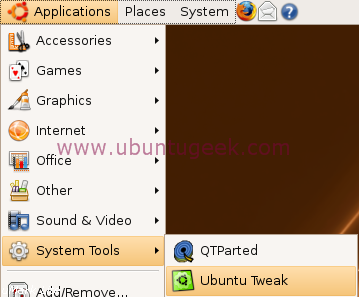
Once it opens you should see similar to the following screen
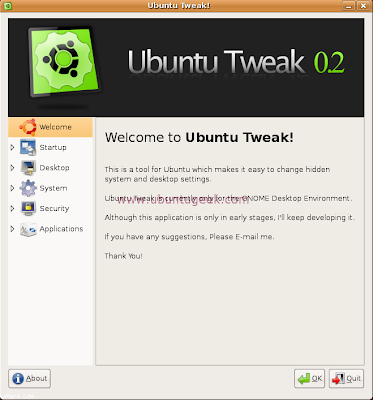
Now we will see one by one option
Startup Configuration
Here you can set session settings,change the splash screen
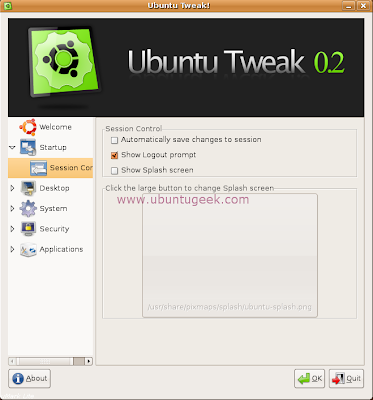
Desktop Configuration
Here you can change the desktop icons and other options relationg to the desktop
Desktop Icons
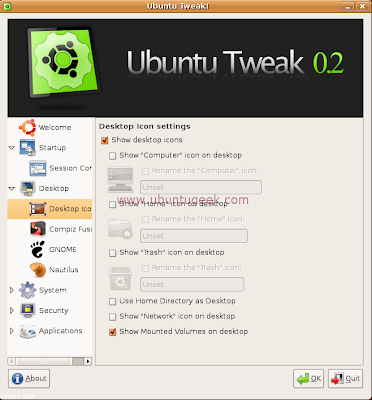
Compiz Fusion
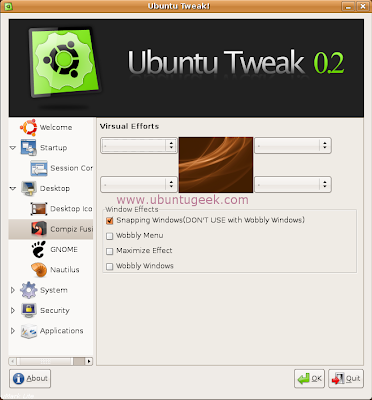
GNOME
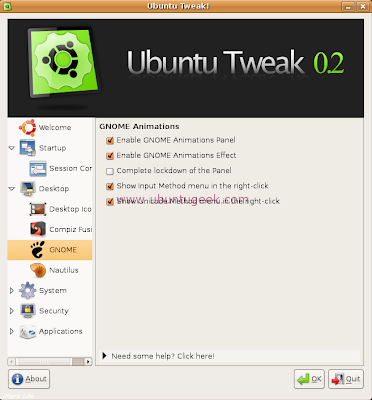
Nautilus
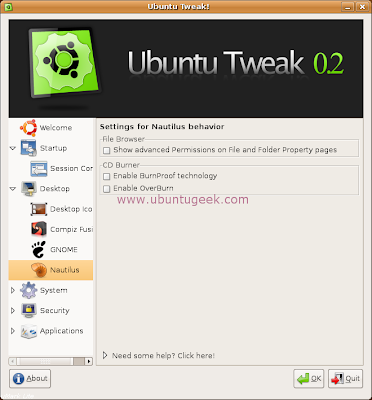
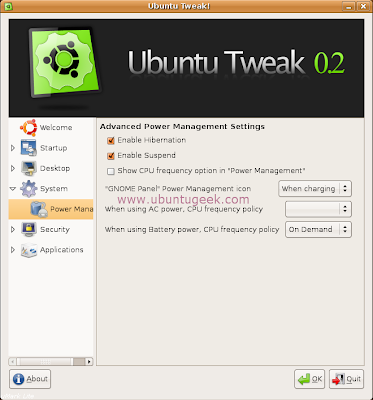
System Configuration
Here you can configure power management and other hardware settings
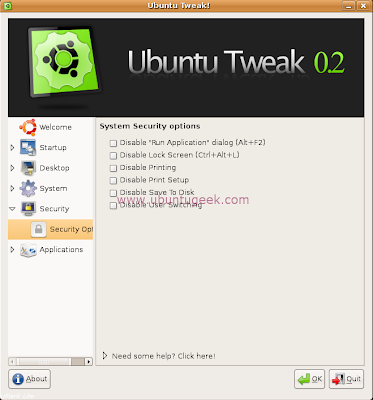
Security Configuration
Here you can configure the system security options
Applications configuration
Here you can configure commonly used applications
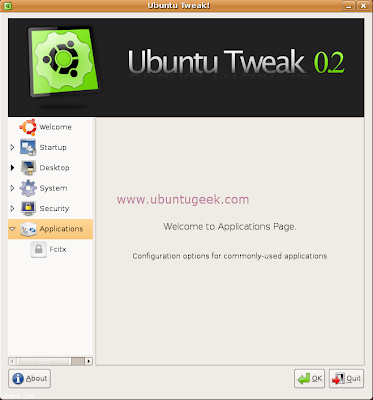
Home Page of Ubuntu Tweak
~
This tool is for ubuntu which makes it easy to change hidden system and desktop settings.Ubuntu Tweak is only for GNOME desktop environment.This is still under heavy development and very good utility for ubuntu users.
Ubuntu Tweak Features:
GNOME Session Control
Show/Hide and Change Splash screen
Show/Hide desktop icons or Mounted Volumes.
Show/Hide/Rename Computer, Home, Trash icon or Network icon
Use Home Directory as Desktop
Compiz Fusion settings, Screen Edge Settings, Window Effects Settings.
GNOME Panel Settings.
Nautilus Settings.
Advanced Power Management Settings.
System Security Settings.
Install Ubuntu Tweak
First you need to download ubuntu tweak from the following options
for i386 users download from here
For AMD64 users download from here
Download ubuntu tweak using the following command
wget http://ubuntu-tweak.googlecode.com/files/ubuntu-tweak_0.2.6-1~ppa1_all.deb
Now you have .deb package install this package using the following command
sudo dpkg -i ubuntu-tweak_0.2.6-1~ppa1_all.deb
Install from repository for Gutsy
No matter which Ubuntu do you use, open your terminal, type the command to run gedit(or other editor in your opinion) to modify the sources.list
sudo gedit /etc/apt/sources.list
And put the two line into it
deb http://ppa.launchpad.net/tualatrix/ubuntu gutsy main
deb-src http://ppa.launchpad.net/tualatrix/ubuntu gutsy main
Then update the source and install or upgrade Ubuntu Tweak
sudo apt-get update
sudo apt-get install ubuntu-tweak
This will complete the installation
Using Ubuntu Tweak
If you want to open Ubuntu Tweak go to Applications--->System Tools--->Ubuntu Tweak

Once it opens you should see similar to the following screen

Now we will see one by one option
Startup Configuration
Here you can set session settings,change the splash screen

Desktop Configuration
Here you can change the desktop icons and other options relationg to the desktop
Desktop Icons

Compiz Fusion

GNOME

Nautilus

System Configuration
Here you can configure power management and other hardware settings

Security Configuration
Here you can configure the system security options

Applications configuration
Here you can configure commonly used applications

Home Page of Ubuntu Tweak
~
[T] Fix right Alt key in Ubuntu
Fix your right Alt key in Ubuntu
There is a way you can get the right Alt key behave like the left Alt key
You need to select System and Preference and then Keyboard.

Under Layout Options tab, open the third level choosers branch and re assign the third level chooser to any another key.

~
There is a way you can get the right Alt key behave like the left Alt key
You need to select System and Preference and then Keyboard.

Under Layout Options tab, open the third level choosers branch and re assign the third level chooser to any another key.

~
Subscribe to:
Posts (Atom)


