Bye pass "Copy & Paste"
Many a times we require a FOLDER . . . . too often, like to store our Multimedia files & all ! !
No need to access the folder and carry out the traditional COPY & PASTE !!!
Just add it too "SEND TO" !!!
Follow these steps:
** Open any FOLDER.
** Then, TOOLS >> Folder Options
** Click view TAB.
** In LIST of Advance Settings, click Show hidden files and folders !
** Now, go to C:\Documents and Settings
** Here, double click and open your (username) folder !
** Now, open SendTo folder.
** Here copy and paste the shortcut of your favorite folder.
That's Done !!!
Now, transfer files to your favorite folder :
** Right Click the file
** Then, Send To
** Click the folder name !
~
Tuesday, November 10, 2009

Monday, November 9, 2009
[W] Disable "Error Reporting" in Windows XP
Disable "Error Reporting" in Windows XP
1. First, right-click the My Computer icon in the Start menu.
2. Next, select Properties to open up the System Properties window.
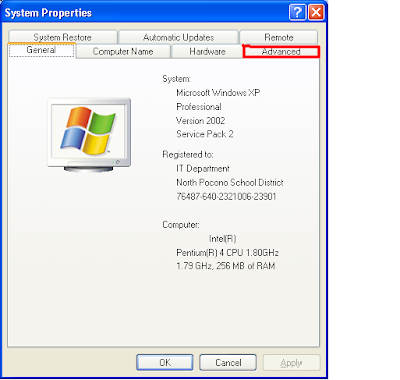
3. Now, select the Advanced tab.
4. Then, under the Advanced tab, click the Button that reads Error Reporting at the bottom of the application.
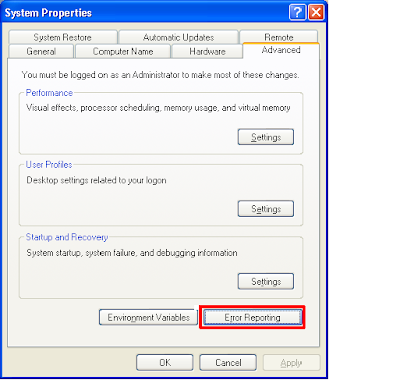
The Error Reporting window should now appear.
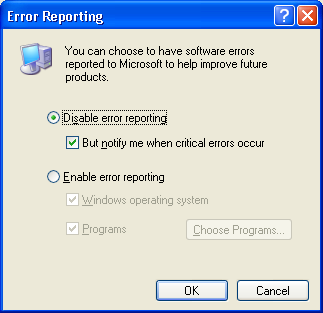
5. Next, select the item that reads Disable Error Reporting. Although you are choosing to eliminate all error reporting, you will still be notified when critical errors occur as long as you keep the box checked that says “But notify me when critical errors occur” under the item: Disable error reporting.
6. Finally, click OK to exit the window and then click OK again to exit the System Properties window.
That’s it! You should not receive those annoying error messages again, but will still receive the critical ones. Have fun!
~
1. First, right-click the My Computer icon in the Start menu.
2. Next, select Properties to open up the System Properties window.

3. Now, select the Advanced tab.
4. Then, under the Advanced tab, click the Button that reads Error Reporting at the bottom of the application.

The Error Reporting window should now appear.

5. Next, select the item that reads Disable Error Reporting. Although you are choosing to eliminate all error reporting, you will still be notified when critical errors occur as long as you keep the box checked that says “But notify me when critical errors occur” under the item: Disable error reporting.
6. Finally, click OK to exit the window and then click OK again to exit the System Properties window.
That’s it! You should not receive those annoying error messages again, but will still receive the critical ones. Have fun!
~
[W] Install Windows XP Unattended
Install Windows XP Unattended
You can install XP unattended, so you won’t have to sit through the installation process if you are upgrading from another operating system. Simply follow these steps:
1. Insert your Windows XP CD-Rom
2. Double-click on the My computer icon
3. Double-click on the CD-Rom Drive icon
4. Go to the ‘Support\Tools’ sub-folder
5. Double-click on the ‘DEPLOY.CAB’ file
6. Highlight ‘DEPLOY.CHM’, ‘REF.CHM’, ‘SETUPMGR.EXE’, and ‘README.TXT’
7. Select your target path
8. Click OK to extract the files
9. Go to the folder where you extracted the files
10. Double-click on the CHM files one at a time to read the detailed guidelines on how to install XP in automated unattended mode
11. Run ‘SETUP.MGR’, which will guide you through the process of creating an ‘UNATTEND.TXT’ file
You can install XP unattended, so you won’t have to sit through the installation process if you are upgrading from another operating system. Simply follow these steps:
1. Insert your Windows XP CD-Rom
2. Double-click on the My computer icon
3. Double-click on the CD-Rom Drive icon
4. Go to the ‘Support\Tools’ sub-folder
5. Double-click on the ‘DEPLOY.CAB’ file
6. Highlight ‘DEPLOY.CHM’, ‘REF.CHM’, ‘SETUPMGR.EXE’, and ‘README.TXT’
7. Select your target path
8. Click OK to extract the files
9. Go to the folder where you extracted the files
10. Double-click on the CHM files one at a time to read the detailed guidelines on how to install XP in automated unattended mode
11. Run ‘SETUP.MGR’, which will guide you through the process of creating an ‘UNATTEND.TXT’ file
[W] Avast Antivirus Installation "Error 3"
Avast Antivirus Installation "Error 3"
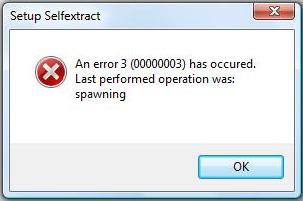
Problem: When you try to install Avast Antivirus, this error occurs:
Setup Selfextract
An error 3 (00000003) has occured.
Last performed operation was:
spawning
Screenshot:
Cause:
This error occurs when you try to install a new Avast installation in a computer that has a corrupted installation of Avast Antivirus.
Solution:
1. Download Avast Uninstall Tool/Utility.
2. Start Windows in Safe Mode
3. Run the uninstall utility (aswclear.exe)
Please note: If you installed Avast antivirus in a different folder than the default, browse for it. Be careful though because the content of any folder you choose will be deleted.
4. Click REMOVE
5. Restart your computer.
6. You can now reinstall avast antivirus.
~
Problem: When you try to install Avast Antivirus, this error occurs:
Setup Selfextract
An error 3 (00000003) has occured.
Last performed operation was:
spawning
Screenshot:

Cause:
This error occurs when you try to install a new Avast installation in a computer that has a corrupted installation of Avast Antivirus.
Solution:
1. Download Avast Uninstall Tool/Utility.
2. Start Windows in Safe Mode
3. Run the uninstall utility (aswclear.exe)
Please note: If you installed Avast antivirus in a different folder than the default, browse for it. Be careful though because the content of any folder you choose will be deleted.
4. Click REMOVE
5. Restart your computer.
6. You can now reinstall avast antivirus.
~
[W] Crack da Memory card Password
Crack da Memory card Password
Follow the Steps
1. Install the File explorer Software e.g. SELQ of Fileman thru data Cable or Bluetooth in Phone memory
2. Then Insert The Blocked MMC
3. Open the File Explorer Software
4. Goto C:\ i.e Phone Memory
5. Goto System
6. Goto Find and Search MMcstore
7. Send this file by Bluetooth or Infrared to your PC
8. Rename the file MMCSTORE to MMCSTORE.TXT
9. Open the file and the password of the MMC is visible.
~
Follow the Steps
1. Install the File explorer Software e.g. SELQ of Fileman thru data Cable or Bluetooth in Phone memory
2. Then Insert The Blocked MMC
3. Open the File Explorer Software
4. Goto C:\ i.e Phone Memory
5. Goto System
6. Goto Find and Search MMcstore
7. Send this file by Bluetooth or Infrared to your PC
8. Rename the file MMCSTORE to MMCSTORE.TXT
9. Open the file and the password of the MMC is visible.
~
[W] FAT to NTFS
Convert FAT to NTFS file system.
To convert a FAT partition to NTFS, perform the following steps.
Click Start, click Programs, and then click Command Prompt.
In Windows XP, click Start, click Run, type cmd and then click OK.
At the command prompt, type CONVERT [driveletter]: /FS:NTFS.
Convert.exe will attempt to convert the partition to NTFS.
NOTE: Although the chance of corruption or data loss during the conversion from FAT to NTFS is minimal, it is best to perform a full backup of the data on the drive that it is to be converted prior to executing the convert command. It is also recommended to verify the integrity of the backup before proceeding, as well as to run RDISK and update the emergency repair disk (ERD).
~
To convert a FAT partition to NTFS, perform the following steps.
Click Start, click Programs, and then click Command Prompt.
In Windows XP, click Start, click Run, type cmd and then click OK.
At the command prompt, type CONVERT [driveletter]: /FS:NTFS.
Convert.exe will attempt to convert the partition to NTFS.
NOTE: Although the chance of corruption or data loss during the conversion from FAT to NTFS is minimal, it is best to perform a full backup of the data on the drive that it is to be converted prior to executing the convert command. It is also recommended to verify the integrity of the backup before proceeding, as well as to run RDISK and update the emergency repair disk (ERD).
~
Sunday, November 8, 2009
[W] Google as Proxy
How to use Google as Proxy
Many jobs and schools (countries?) block access to certain sites. However, it is very difficult for anybody to block access to Google. By using Google with either of these two methods, you can gain access to blocked sites very easily. I use an uncommon way for bypassing blocked sites using Google.
1: The first and most common way of using Google to bypass blocked sites is just to search for the site and then clicked the "cached" link that appears on Google. Easy, simple, and frequently works for static information.
2: Passing the site through Google translator works well as well. Here's the URL to use:
Code:
http://www.google.com/translate?langpair=en|en&u=www.blockedsite.com
(where blockedsite.com is the site that you wish to visit)
This translates the site from English to English and works because the ip address will appear as Google instead of yours. Here's a link to tech-recipes passed through the translator as an example. You can actually do this with any langpair. Change en|en in the URL above to Spanish by using es|es and it still works.
3: Unique method that I have not seen described before is to search through Google mobile. Google mobile will "convert as you go" very similar to the translation method above.
Just search for your site with Google mobile and click on the link it provides. Here's is tech-recipes brought up through Google mobile search. Once again, this will allow you to bypass any blocks because the IP request comes from Google not form yours.
Like the translation method above, Google will continue to "proxy" as you continue to visit links through the site.
It is also useful to retrieve some information from net which is currently not available.
Few days ago softarchives.net was down and I wanted to download one software urgently from there so I searched Google for site:softarchive.net software name and I saw the link in Google search. I opened cached page of that page and got their link.
Download the latest version of Firefox here.
~
Many jobs and schools (countries?) block access to certain sites. However, it is very difficult for anybody to block access to Google. By using Google with either of these two methods, you can gain access to blocked sites very easily. I use an uncommon way for bypassing blocked sites using Google.
1: The first and most common way of using Google to bypass blocked sites is just to search for the site and then clicked the "cached" link that appears on Google. Easy, simple, and frequently works for static information.
2: Passing the site through Google translator works well as well. Here's the URL to use:
Code:
http://www.google.com/translate?langpair=en|en&u=www.blockedsite.com
(where blockedsite.com is the site that you wish to visit)
This translates the site from English to English and works because the ip address will appear as Google instead of yours. Here's a link to tech-recipes passed through the translator as an example. You can actually do this with any langpair. Change en|en in the URL above to Spanish by using es|es and it still works.
3: Unique method that I have not seen described before is to search through Google mobile. Google mobile will "convert as you go" very similar to the translation method above.
Just search for your site with Google mobile and click on the link it provides. Here's is tech-recipes brought up through Google mobile search. Once again, this will allow you to bypass any blocks because the IP request comes from Google not form yours.
Like the translation method above, Google will continue to "proxy" as you continue to visit links through the site.
It is also useful to retrieve some information from net which is currently not available.
Few days ago softarchives.net was down and I wanted to download one software urgently from there so I searched Google for site:softarchive.net software name and I saw the link in Google search. I opened cached page of that page and got their link.
Download the latest version of Firefox here.
~
[W] Extended RAM
Extended RAM
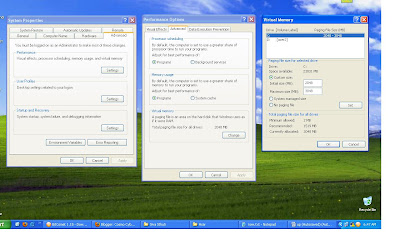
Virtual memory is a small portion of hard drive space converted to RAM. This is useful for computers which use more physical RAM than is available. Windows XP allow the user to change the amount of virual memory used. By default, the system determines the amount automatically. It is possible to change this to a set amount. It can be a good idea to do this for better performance. Here are the instructions setp by step, along with suggested settings:
1. Click 'Start'
2. Click 'My Computer'
3. Click 'View System Information' under 'System Tasks' (If you can not see this option then click 'System Tasks' to collapse the menu). This will open the System Properties window. Alternatively, you can go to Control Panel and open 'System'.
4. Click the 'Advanced' tab
5. Click the 'Settings' button under 'Performance'. This opens the Performance Options window.
6. Click the 'Advanced' tab.
7. Click the 'Change' button under 'Virtual Memory'
8. Under 'Paging file size for selected drive' select the 'Custom size:' option.
9. In the box next to where it says 'Intial size (MB)' the best number to enter is 2X the amount of physical memory currently in your system. For example, if you have 512 MB of RAM you would enter 1024 in this box.
10. In the box next to where it says 'Maximum size (MB)' enter the same number.
11. Click 'OK'
12. Click 'Apply' on the previous window
13. Click 'OK'
14. Click 'OK' on the previous window.
15. Reboot ur System.
~
Virtual memory is a small portion of hard drive space converted to RAM. This is useful for computers which use more physical RAM than is available. Windows XP allow the user to change the amount of virual memory used. By default, the system determines the amount automatically. It is possible to change this to a set amount. It can be a good idea to do this for better performance. Here are the instructions setp by step, along with suggested settings:
1. Click 'Start'
2. Click 'My Computer'
3. Click 'View System Information' under 'System Tasks' (If you can not see this option then click 'System Tasks' to collapse the menu). This will open the System Properties window. Alternatively, you can go to Control Panel and open 'System'.
4. Click the 'Advanced' tab
5. Click the 'Settings' button under 'Performance'. This opens the Performance Options window.
6. Click the 'Advanced' tab.
7. Click the 'Change' button under 'Virtual Memory'
8. Under 'Paging file size for selected drive' select the 'Custom size:' option.
9. In the box next to where it says 'Intial size (MB)' the best number to enter is 2X the amount of physical memory currently in your system. For example, if you have 512 MB of RAM you would enter 1024 in this box.
10. In the box next to where it says 'Maximum size (MB)' enter the same number.
11. Click 'OK'
12. Click 'Apply' on the previous window
13. Click 'OK'
14. Click 'OK' on the previous window.
15. Reboot ur System.

~
Type Web Addresses Quickly
The Best Keyboard Shortcut in Firefox – Type Web Addresses Quickly
If you haven’t upgrade to Firefox 3 yet, please do so. The new version is far more responsive and stable that its predecessors.
Another reason for loving Firefox 3 is the way it auto-completes web URLs – very intelligent and something you’ll miss in IE. Update: Firefox 2 users share that this works in the previous version as well.
To get started, press Alt+D or Ctrl+L to move the cursor to your Firefox browser address bar and then try some of these combinations:
To open Google Maps website, type "google/maps" in the Firefox address bar (no quotes) and press Ctrl+Enter.
Firefox will automatically surround the word(s) that are before the first slash with www. and .com. IE 7 and previous version of Firefox can’t do this.
And this URL auto-complete works even if you have several subdirectories in the URL. For instance, your Google Apps sign-in page will open correctly if you type "google/a/mysite.com" and press Ctrl+Enter.
If you want to open a .org site, you need to use Ctrl+Shift+Enter. Typing yahoo/forums followed by Ctrl+Shift+Enter would therefore open our support website at www.yahoo.org/forums.
And for .net websites, the shortcut key is Shift+Enter. So you can view the most popular PowerPoint presentations on Slideshare by typing slideshare/popular followed by Shift+Enter.
http://www.youtube.com/watch?v=-ZmFs0ws9CU&feature=player_embedded
For Geeks: If you like Firefox to add a different suffix other than .com, open your Firefox settings page at about:config and change the value of key browser.fixup.alternate.suffix to something else like .org, .net, etc.
Download the latest version of Firefox here.
~
If you haven’t upgrade to Firefox 3 yet, please do so. The new version is far more responsive and stable that its predecessors.
Another reason for loving Firefox 3 is the way it auto-completes web URLs – very intelligent and something you’ll miss in IE. Update: Firefox 2 users share that this works in the previous version as well.
To get started, press Alt+D or Ctrl+L to move the cursor to your Firefox browser address bar and then try some of these combinations:
To open Google Maps website, type "google/maps" in the Firefox address bar (no quotes) and press Ctrl+Enter.
Firefox will automatically surround the word(s) that are before the first slash with www. and .com. IE 7 and previous version of Firefox can’t do this.
And this URL auto-complete works even if you have several subdirectories in the URL. For instance, your Google Apps sign-in page will open correctly if you type "google/a/mysite.com" and press Ctrl+Enter.
If you want to open a .org site, you need to use Ctrl+Shift+Enter. Typing yahoo/forums followed by Ctrl+Shift+Enter would therefore open our support website at www.yahoo.org/forums.
And for .net websites, the shortcut key is Shift+Enter. So you can view the most popular PowerPoint presentations on Slideshare by typing slideshare/popular followed by Shift+Enter.
http://www.youtube.com/watch?v=-ZmFs0ws9CU&feature=player_embedded
For Geeks: If you like Firefox to add a different suffix other than .com, open your Firefox settings page at about:config and change the value of key browser.fixup.alternate.suffix to something else like .org, .net, etc.
Download the latest version of Firefox here.
~
Saturday, November 7, 2009
GMail limit . . . . ?
Gmail Has a Daily Limit on Sending Email
Gmail imposes a limit on the attachment size (20 MB) and the overall storage space (6 GB and growing) but there’s also a daily quote on sending email. Break the rules and Google will disable you Gmail account temporarily without any warnings.
So while sending an email message to a large group of friends using Gmail, read the following rules to avoid temporary shut-down of Gmail:
Rule 1. If you access Gmail via POP or IMAP clients (like Microsoft Outlook), you can send an email message to a maximum of 100 people at a time. Cross the limit and your account will be disabled for a day with the error "550 5.4.5 Daily sending quota exceeded."
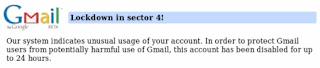
Rule 2. If you access Gmail from the browser, you may not address an email message to more than 500 people at a time. Try adding any more recipients in the To, CC or BCC field and your Gmail account will get probably disabled for 24-72 hours. Error: "Gmail Lockdown in Secton 4"
Rule 3. Always double check email addresses of recipients before hitting the Send button in Gmail. That’s because your account will get disabled if the email message contains a large number of non-existent or broken addresses (<25 ?) that bounce back on failed delivery.
Rule 4: This is slightly unrelated but still important – Google will disable your Gmail account permanently if you don’t check your Gmail email for a period of nine months. All the stored messages will be deleted and you Gmail address (user name) may be released for others to grab it.
Download the latest version of Firefox here.
~

Gmail imposes a limit on the attachment size (20 MB) and the overall storage space (6 GB and growing) but there’s also a daily quote on sending email. Break the rules and Google will disable you Gmail account temporarily without any warnings.
So while sending an email message to a large group of friends using Gmail, read the following rules to avoid temporary shut-down of Gmail:
Rule 1. If you access Gmail via POP or IMAP clients (like Microsoft Outlook), you can send an email message to a maximum of 100 people at a time. Cross the limit and your account will be disabled for a day with the error "550 5.4.5 Daily sending quota exceeded."
Rule 2. If you access Gmail from the browser, you may not address an email message to more than 500 people at a time. Try adding any more recipients in the To, CC or BCC field and your Gmail account will get probably disabled for 24-72 hours. Error: "Gmail Lockdown in Secton 4"
Rule 3. Always double check email addresses of recipients before hitting the Send button in Gmail. That’s because your account will get disabled if the email message contains a large number of non-existent or broken addresses (<25 ?) that bounce back on failed delivery.
Rule 4: This is slightly unrelated but still important – Google will disable your Gmail account permanently if you don’t check your Gmail email for a period of nine months. All the stored messages will be deleted and you Gmail address (user name) may be released for others to grab it.
Download the latest version of Firefox here.
~
Subscribe to:
Posts (Atom)


